You can download an invoice for a paid order from your KOLSprite account. Follow the steps below to find the order and enter your invoice details.
Download your invoice
1
1. Sign in to KOLSprite
Use the account you used to place the order.
2
2. Open My orders
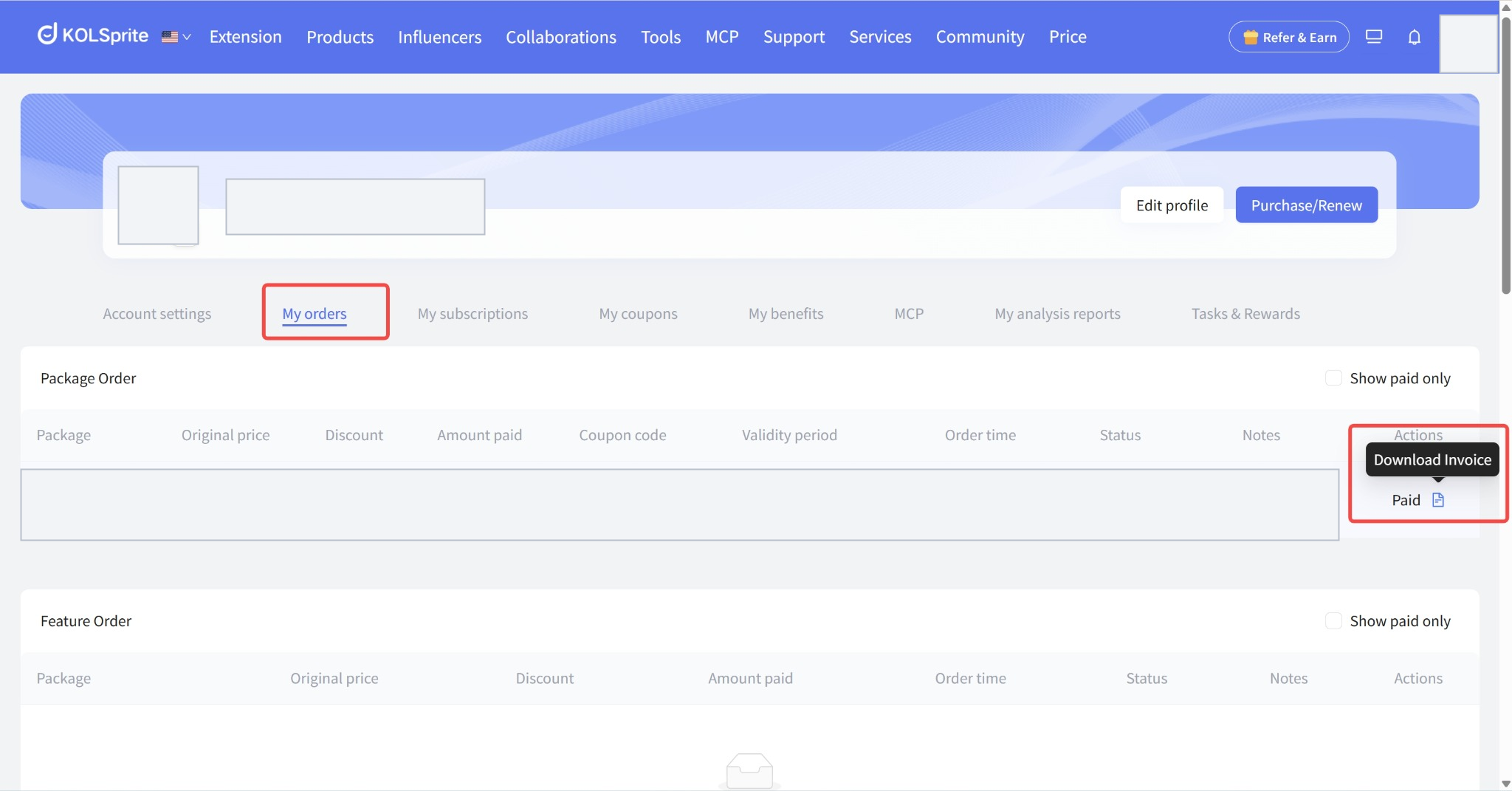
Go to My orders in your account. The page shows your package and feature orders.
3
3. Find the paid order
Find the purchase you need an invoice for. In its Actions column, click the invoice icon. Hovering over the icon shows Download Invoice.
 +
+
The invoice icon appears in the Actions column of a paid order.
4. Enter invoice details
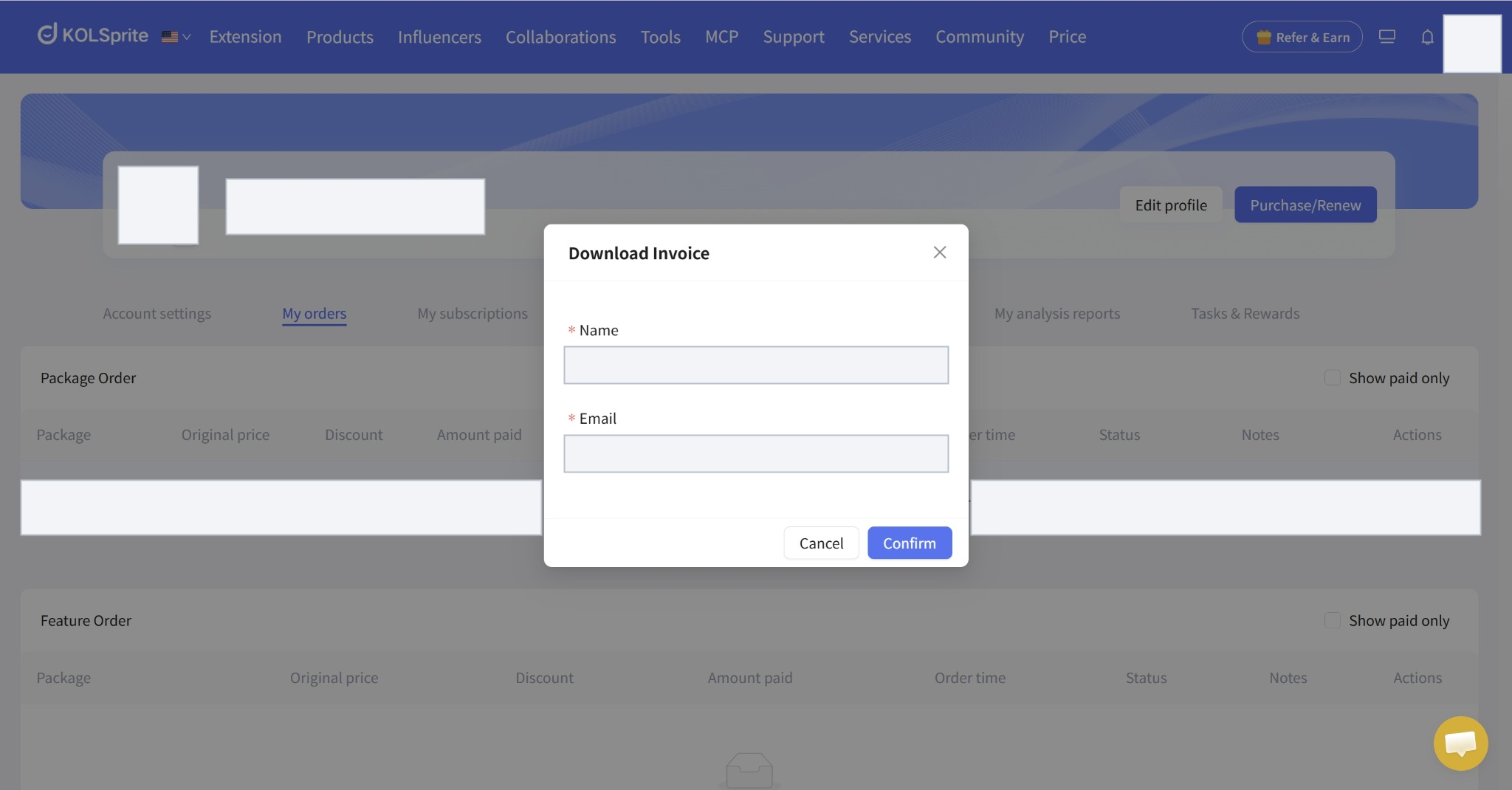
In the Download Invoice window, enter the name and email you want on the invoice. Both fields are required. Click Confirm to download the invoice.
 +
+
Enter the required name and email, then select Confirm.
Quick path
Sign in > My orders > Paid order > Download Invoice > Confirm
Can't find the order?
Make sure you're signed in to the account used for the purchase. Check the order date and status in My orders. If the order is still missing, contact KOLSprite support.


 Refer & Earn